 Flamingo Float AI
Start with a clear portrait
One person, face visible, even lighting.
Keep filters and obstructions to a minimum.
The original input photo for this reference is not available.
ONE PHOTO. THE FLAMINGO POOL LOOK.
Create a rooftop pool video from one portrait.
Put yourself on the pink float, with the rooftop pool and city skyline below.
One person · JPG, PNG or WebP · Up to 10 MB
START WITH YOUR PHOTO
Choose a photo with one clearly visible person. A sharp, naturally lit portrait is a good starting point.
Select a portrait from your device.
10 seconds · 720p
Loading current credit cost…
Your photo is uploaded privately only after you confirm generation.
THE LOOK, UP CLOSE
A single-person rooftop pool scene.
One person, face visible, even lighting.
Keep filters and obstructions to a minimum.
The original input photo for this reference is not available.
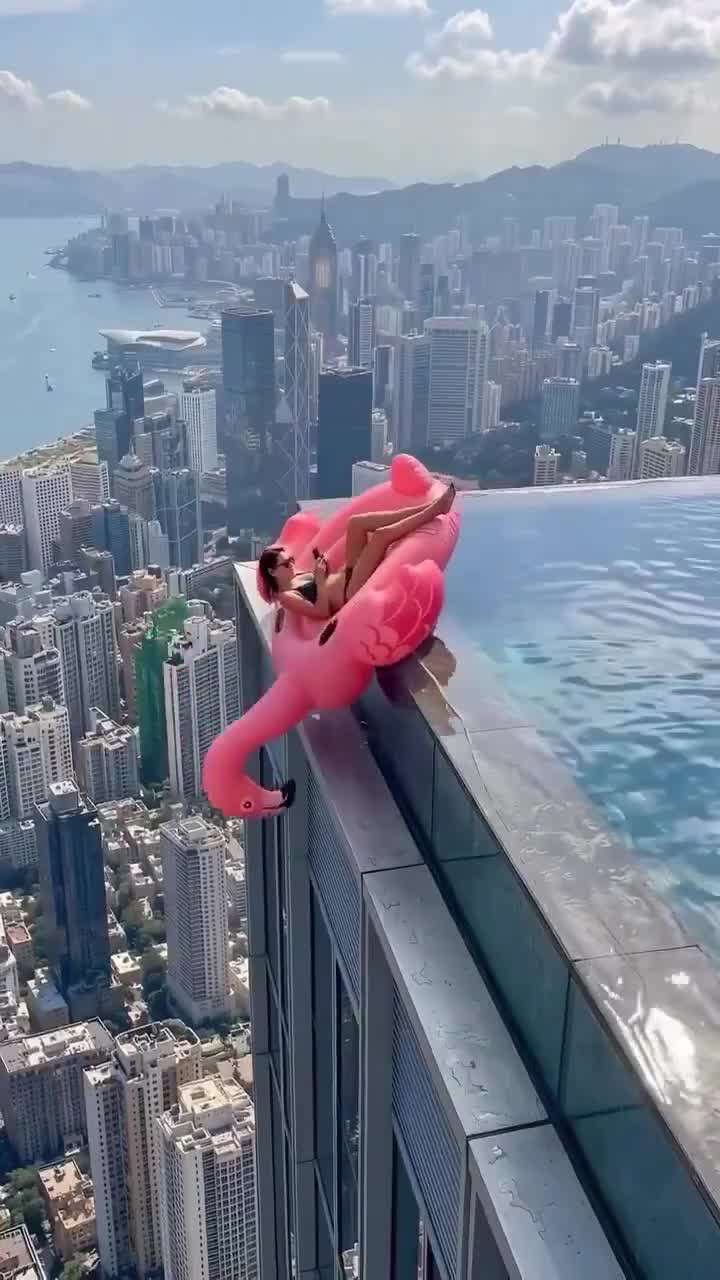
Image source: flamingofloatai.run ↗. This is a style reference, not a verified before-and-after pair.
FROM PHOTO TO VIDEO
Choose a clear photo of one person for the flamingo pool effect.
Review the selected effect and the total cost before starting generation.
Once your video is ready, review it and download the result.
YOUR NEXT POOLSIDE MOMENT
Choose a one-time credit pack for Flamingo Float AI. No subscription. No automatic renewal.
One-time credits for your flamingo pool videos.
100 credits
One-time credits for your flamingo pool videos.
300 credits
One-time credits for your flamingo pool videos.
500 credits
Prices are listed in USD. Eligible customers may see a local-currency price at Stripe checkout. Review the final total before paying. Your selected video duration determines the credit cost shown in the generator.
THE SCENE BEHIND THE CLIP
A pink flamingo float, reflective pool water and a city skyline give this effect its distinctive look. Flamingo Float AI uses your portrait as the starting point for a short rooftop pool video, bringing a relaxed holiday scene to a photo you already have.
You do not need to film at a pool or build a video timeline. Choose a photo, set your clip length and format, then confirm the request. The scene is AI generated: treat it as a creative interpretation of your photo rather than a recording of a place you visited.
Start with the original image if you have it. A screenshot of a screenshot can lose facial detail, while very dark lighting makes it harder to distinguish the person from the background. Pick the clearest version rather than trying to fix a blurry photo with extra sharpening.
A face looking toward the camera is a practical starting point. Keep both eyes visible where possible and avoid hands, hair or props covering key features. If several people are in the frame, choose a different photo with one person so the subject is unambiguous.
Crop away unnecessary borders or text without cutting through the head. Check that the photo still looks clear at its natural size, then export it as JPG, PNG or WebP within the 10 MB limit. Preparing a clean input is useful even though AI output can still vary.
The generator starts at 10 seconds and offers 5 and 15-second alternatives. A 5-second clip suits a brief visual moment; a longer clip gives more screen time to the poolside scene. These choices describe the finished clip length, rather than the time needed to generate it.
Use portrait 9:16 when you are preparing a vertical post, or landscape 16:9 when you want a wide frame for a video edit or presentation. Both choices use 720p output. Set the frame before starting so the composition is created for your intended format.
Clips do not include audio. You can add music, voiceover or captions afterward in your own editor, using material you have permission to share. The tool focuses on creating the pool scene rather than providing a full editing suite.
Review the selected portrait before confirming. Replacing it at this point is easier than discovering that you chose the wrong picture after submitting. Sign in to check your available credits, choose the duration, and read the total shown beside the generation control.
At the current rate, a 5-second clip uses 20 credits, the default 10-second clip uses 40, and a 15-second clip uses 60. The confirmation step shows the request you are about to submit. Credit packs and purchase terms are listed on the pricing page; review that page when deciding how many credits to purchase.
Once submitted, follow the status on the page. If the connection is interrupted or the request is still being checked, avoid starting another request just to see whether the first one worked. Keep the current request visible and follow the status or support guidance.
A flamingo pool video can be a lighthearted holiday-style update, a birthday greeting or a short opening scene for a personal video. Pick the format that fits your post and leave any final captions or sound for your usual editing app.
Watch the whole result before publishing. Look at facial details, hands, clothing, float shape and the water around the subject. Generative video can introduce unexpected movement or visual changes. A clear input helps define the subject, but does not promise an exact likeness or a perfect result.
Save the completed video while its download is available, and keep your own copy if you plan to edit or share it later. Be clear with your audience that the scene is AI generated, especially where a realistic rooftop setting could be mistaken for footage of a real trip.
Explore the rooftop edge composition, plan your pool float clip, or use the photo and prompt guide to choose a starting portrait.
BEFORE YOU START
Flamingo Float AI turns a single-person photo into an AI video with a pink flamingo float, rooftop pool and city skyline. It creates a new scene from your image. The result can change details of the face, clothing, water and background, so review the finished clip before sharing it.
Choose a sharp photo of one person with their face clearly visible. Use even lighting and avoid heavy beauty filters, sunglasses or objects covering the face. Leave a little space around the head and shoulders. A group photo makes the intended subject less clear; use a separate portrait instead.
The photo selector accepts JPG, PNG and WebP images up to 10 MB. If your phone saves HEIC files, export a JPG or PNG before selecting it. Simply changing a file extension does not convert an image. You can replace or remove the selected photo before continuing.
The current rate is 20 credits for 5 seconds, 40 for 10 seconds and 60 for 15 seconds. The default is 10 seconds. Check the total shown in the generator before confirming; the website validates the selected length and credit cost when you submit.
Choose a 5, 10 or 15-second video at 720p. Portrait 9:16 and landscape 16:9 are available in the generator. Clips are created without audio; add your own sound later in your preferred editor. Select the format for your intended post before submitting the request.
Choosing a photo creates a preview in your browser. After you sign in and confirm generation, the photo is uploaded to private storage and sent for AI processing. Credits are deducted when you submit. Read the Privacy Policy for information about how your photo is handled.
The page shows the request status while your clip is queued or processing. Processing time varies; the selected video length is the output duration, not a delivery-time promise. When the clip is ready, review it and use Open / download video to save it while the provider download remains available.
No. The rooftop image is an attributed reference still from flamingofloatai.run. Its original input photo is unavailable, so it is not a verified transformation or an output of this website. Use it to understand the visual direction rather than to predict an identical result for your own photo.
Learn more in our Privacy Policy