 Flamingo Float AI
Start with a single visual idea
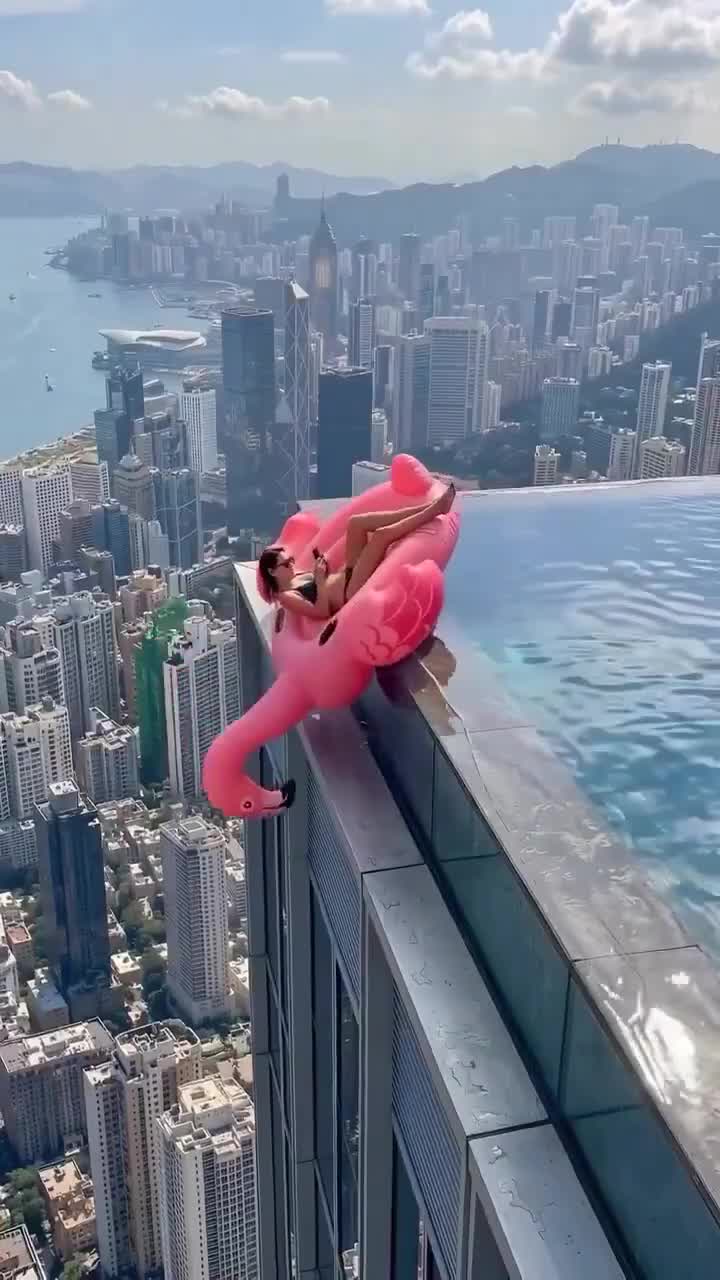
Think of this generator as the scene-making step. It places the person from your image into a rooftop infinity pool with a pink flamingo float. It is not a multi-scene timeline editor, and it does not ask you to build a sequence of cuts or write a custom motion prompt.
For a greeting, let the pool scene carry the playful mood and add your words afterward. For a longer edit, decide whether the clip will be an opening image, a brief transition or a closing moment. That decision makes it easier to choose a useful duration instead of automatically selecting the longest option.
Match the duration to the edit
Five seconds is the shortest available choice and can suit a brief visual beat. Ten seconds is the default, giving more screen time to the person, float and setting. Fifteen seconds is the longest choice in the current controls. These are planned uses, not guarantees that motion or facial consistency will improve with a longer request.
Credit cost scales with the selected duration using the site’s current configured rate. Check the numeric total beside the generation control and again in the confirmation dialog. Credit-pack prices describe purchased credits; they do not guarantee a fixed number of videos regardless of duration.
Set the frame before you start
Use 9:16 for a portrait composition or 16:9 for landscape. Both use 720p output. Choose the shape that fits your final layout so you are less likely to need a large crop afterward. The tool does not provide a separate in-app crop or caption editor for the finished video.
Keep your source photo simple: one person, a visible face and natural lighting. JPG, PNG and WebP are accepted up to 10 MB. Choosing a file previews it on the page; it is uploaded privately only when you confirm generation. Read the photo guide if you are deciding between several possible inputs.
Finish with a careful playback
When your clip is ready, watch it from beginning to end before using it in a post. Look for unexpected changes in facial details, hands, clothing and water reflections. Keep the actual result rather than assuming it will reproduce an example frame exactly.
There is no audio in the generated clip. Add permitted music, a voiceover or captions in your own editor, save a local copy while the download is available and be clear that the scene is AI generated. If a request is still processing or being checked, keep its status visible instead of starting another request to test the connection.